Computer use
AI computer use agent for Mac
Ask Atd to get something done in a Mac app or on a website, and it works there in the background with a pointer of its own. It acts only in the apps and sites you approve, checks the results of its actions, and stops when you say so.

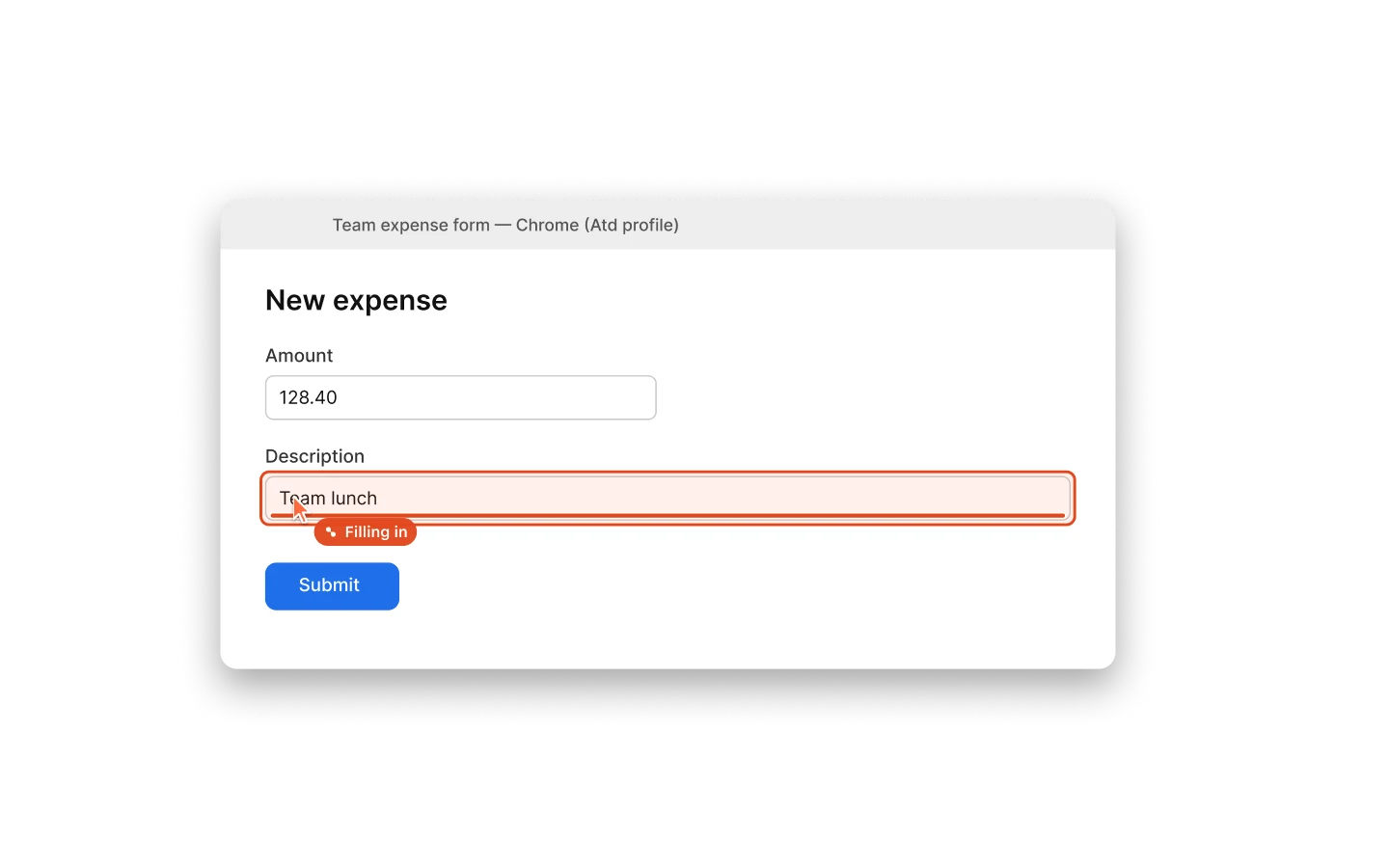
What computer use does on your Mac
Computer use lets an Atd task operate the interfaces you would otherwise click through yourself: Mac apps and websites you sign in to. You describe the goal in a conversation. Atd reads the app’s controls and the screen, clicks, types, chooses menu items and scrolls, then reports what it did and anything it could not confirm.
It takes the direct route when there is one: if a file tool, a terminal command or an API can do the job, the task prefers it over the interface.
- Mac app control is included with Atd; there is nothing extra to install.
- Website control uses an optional browser engine and a separate Chrome profile.
- Atd works in the background and never moves your pointer.
- Clicks, submissions and other actions with effects are checked against an expected result before the next step.
- Stop all ends computer actions in every task and automation at once.
How Atd operates apps and websites, step by step
You start from an ordinary conversation in the panel. A task requests access to an app or website when it reaches the step that needs it, so a known app needs no setup beforehand.
- Ask: describe the task, such as filling in a web form from a document or updating an entry in a Mac app.
- Approve: Atd requests each app or website it needs, and the request follows the task’s approval mode.
- Work: Atd reads the window’s controls, recognized text and a screenshot, then clicks, types, picks menu items or scrolls.
- Check: after an action with effects, Atd confirms the expected result appeared before it continues.
- Review: the conversation shows each step, and Atd tells you what it could not verify or needs you to do.
Access you approve, and how to take it back
Atd acts only in apps and websites approved for the task. Under Manual approval you approve each new app or site, and that access lasts for the run. Under Auto approval, a model checks each request against what you asked and still asks you when it looks risky; access approved under Auto approval or Always allow is saved for later tasks.
Settings → Computer use lists saved access, lets you add an app or website yourself, and shows whether the macOS permissions are on. Disconnect revokes a target’s saved access; for a website, the sign-in data in its browser environment is kept. Stop all ends everything Atd is doing on websites and apps, in tasks and automations alike.
- A browser environment opens only the sites you allowed for it.
- An action whose result Atd can’t confirm is never repeated automatically: further actions in that app or site wait until you look and choose Mark as checked.
Websites in a separate Chrome profile, Mac apps in the background
For websites, install the optional browser engine from Engines in Settings → Computer use, then choose Add browser environment. Atd opens a separate Chrome profile for it, never your everyday one, so Google Chrome must be installed. Sign in there and list the sites it may use, one per line; Atd won’t open pages outside them.
For Mac apps, choose Add application, or let a task request the app. Atd works in the app’s windows in the background where the app supports it. In a task you start, a step the background can’t do may briefly bring the app forward, send that step’s clicks and keys straight to it without moving your pointer, then switch back to the app you were using. Websites always stay in the background.
By default the task’s model reads the screen. Under Screen understanding you can pick a separate image-capable model for that, and Show live pointer marks where Atd is working in a target you can see.
What stays with you
Atd can’t hover, drag between windows or apps, act on a locked screen or in secure input such as password fields, and it never opens context menus. When a task needs one of these steps, a sign-in or a permission, Atd asks you to do it and checks the state again afterwards.
Automations can’t request new access. Computer actions in an automation need separate authorization in Settings → Automations, and only in apps or websites checked for automation use.
Questions
Does Atd take over my mouse and keyboard?
No. Atd works in the background where the app or website supports it, and it never moves your pointer. In a task you start, a step that only works in the foreground can briefly bring a Mac app forward, send that step’s clicks and keys straight to it, and then return you to the app you were using. Websites and automations always stay in the background.
Can Atd use websites I’m signed in to?
Not through your everyday browser profile. Each browser environment is a separate Chrome profile that Atd opens for it: you sign in there once, choose the sites it may use, and the sign-in data stays in that profile on your Mac. Disconnecting the environment revokes Atd’s access but keeps the sign-in data.
Which macOS permissions does computer use need?
App control, which macOS lists under Accessibility (Device Control and Data Access on newer versions), lets Atd read and operate app controls, and Screen Recording lets it take pictures of a target as evidence. Settings → Computer use shows whether each is on and opens System Settings for you; Prepare screen access there lets macOS ask about screen capture before a task instead of during one.
How do I stop Atd while it’s working?
Stop the run from its conversation, or choose Stop all in Settings → Computer use to end every computer action across tasks and automations. To take access away for good, disconnect the app or website in the same place.
Can Atd watch my screen while I do something?
Yes, in a task you start, when you ask it to follow your screen. You choose up to four windows or displays in the macOS picker. Sharing is read-only, needs an image-capable model, and ends when the task finishes or you stop it from macOS.