MCP and skills
MCP client and AI skills for Mac
Atd connects to MCP servers, loads skills, delegates to subagents and runs your saved commands, so the agent on your Mac works with your tools and your way of working. Add each one yourself, or ask Atd to set it up in a conversation.

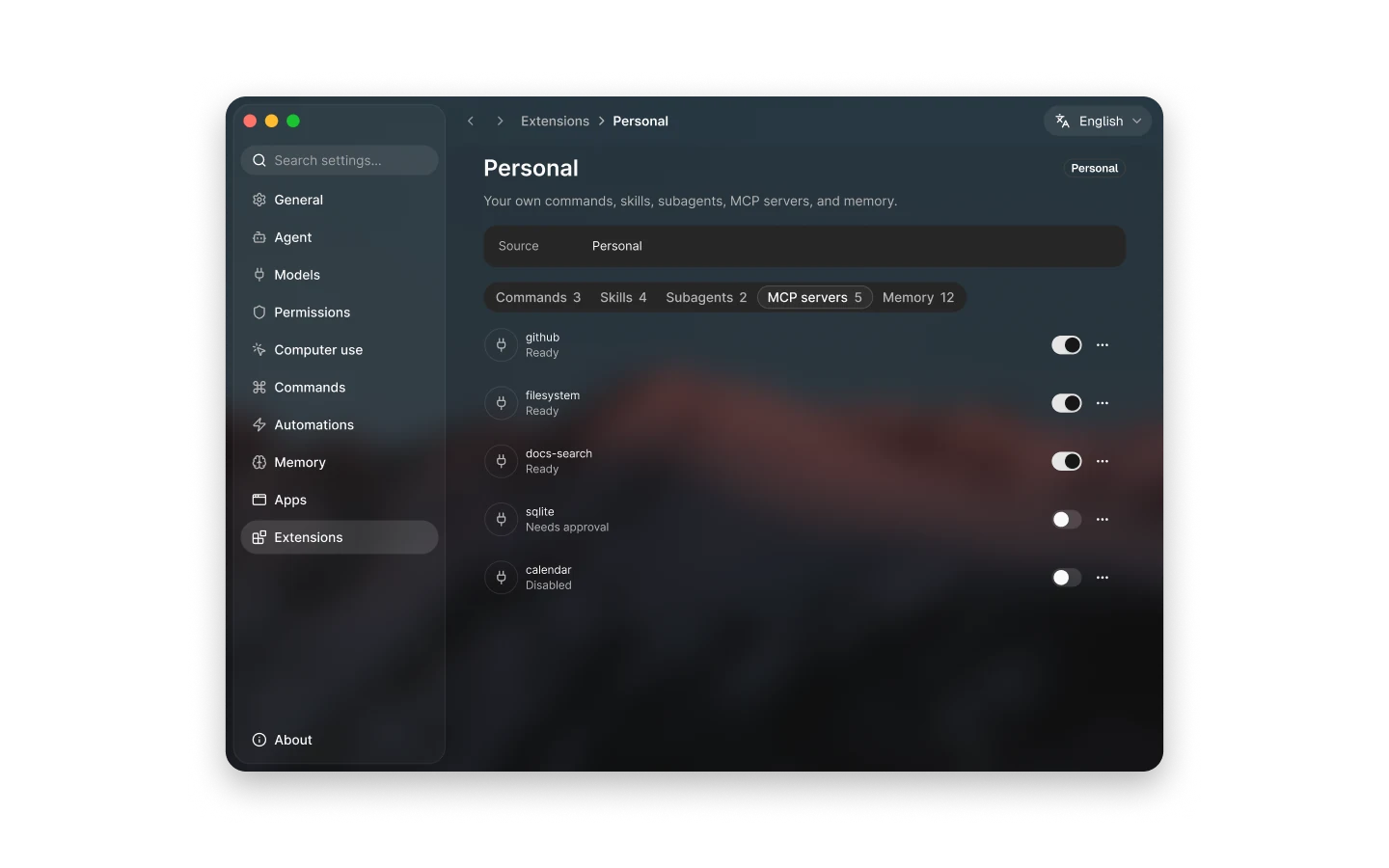
Connect MCP servers
Atd is an MCP client: add a Model Context Protocol server in Settings › Extensions, and tasks can use the tools, resources and prompts it offers. Run a local server as a command on your Mac (stdio), or connect a remote one over Streamable HTTP or HTTP with SSE.
A remote server can sign in with OAuth in your browser, or with a bearer token that Atd reads from an environment variable you name. MCP credentials are kept in your Mac’s keychain, and a local server runs only after you allow it in a system dialog that shows exactly what will run.
- Type @ in the composer and pick a server to point the agent at its tools.
- Servers with many tools can load them on demand, so they don’t fill every request.
- Choose whether the agent may read the files and data a server shares as resources.
- Ask Atd to add a server: it takes the launch command or URL from the server’s documentation and asks you to confirm before saving.
Add skills for recurring work
A skill is a folder with a SKILL.md file that tells the agent how to carry out a kind of work, such as your team’s release notes or a review checklist. Every task lists your skills by name and description, and the agent loads a skill’s instructions when the task matches.
Personal skills live in ~/.atd/skills, and skills in ~/.agents/skills are shared with other agent tools. Type / in the composer to pick a skill yourself, or set a skill to start only when you pick it.
Atd also ships built-in skills, including the ones it uses to create skills, subagents, MCP servers, commands, automations and apps when you ask. You can edit a built-in skill and restore the shipped version later.
Delegate to subagents
A subagent is a specialist the agent can hand a kind of work to, defined in a Markdown file in ~/.atd/agents: when to delegate to it, the tools it may use and its instructions. Each delegation starts fresh with only those instructions and the work it is handed, and the conversation shows its activity as it runs.
Subagents run on the model of the task that delegates to them and write only inside the task’s folder. In Settings › Extensions you can limit a subagent’s tools or give it a stricter approval than the task; it never gets more than the task itself allows.
Saved commands and slash commands
A saved command is a reusable prompt with optional parameters. Run it from the panel, from its own global shortcut, from the selection toolbar on text you select in another app, on text you pick in a screenshot, or from the screenshot toolbar.
In the composer, type / for quick commands such as /new, /model and /compact and to pick a skill, or @ to add a saved command, a subagent, an MCP server, a file or an earlier conversation to your message.
Each command sets what it reads (typed text, the selection, the clipboard or a screenshot) and where its answer goes. It can also load a skill, allow a subagent, suggest an MCP server’s tools or include an excerpt of another conversation.
- Show the answer in the conversation, or in a card over the app you ran it from.
- Replace the selected text, insert after it, or insert at the cursor.
- Copy it to the clipboard, or mark the text you pick in a screenshot.
- Review an answer before it’s written in, and adjust it with suggestions you choose.
- Give a command up to 8 shortcuts, each with its own parameter values or destination.
Install plugin bundles
A plugin bundles commands, skills, subagents and MCP servers. Install one from a local folder, from a Git repository pinned to its commit, or from an npm package checked against the registry’s integrity hash. Atd reads several common bundle layouts, including the open Agent Plugins and Agent Skills formats.
Before installing, Atd lists what the plugin contains, the programs it can run on your Mac and the servers it connects to. Nothing runs during install, plugins start turned off, and their items stay read-only until you duplicate one to Personal. Plugins aren’t signed, so install them only from sources you trust.
Questions
Which MCP transports does Atd support?
Atd supports local MCP servers that it starts as a command on your Mac and talks to over stdio, and remote servers over Streamable HTTP or the older HTTP with Server-Sent Events. A remote server can use no authentication, a bearer token read from an environment variable, or OAuth sign-in in your browser.
Can an MCP server or tool access my files?
A tool or MCP server can reach the files and external services that its own configuration and the task’s permissions allow. Local MCP servers need your approval before they run, and plugin contents are listed for review before you install them. Add only servers you trust, and check what each one offers in Settings › Extensions.
What’s the difference between a skill, a subagent and a command?
A skill is a procedure the agent loads into the current task when the work matches its description. A subagent is a separate specialist the agent hands part of the work to, with its own instructions and tools. A command is a prompt you run yourself, from the panel, a shortcut, the selection toolbar or the screenshot toolbar.
Can I use skills I already have for other agent tools?
Yes. Skills in ~/.agents/skills appear in Atd as Shared skills, and a folder in the Agent Skills format can also be installed as a plugin from a local folder, Git or npm.
Do I have to write configuration files?
No. Ask Atd in a conversation to add an MCP server, create a skill or subagent, or save a command; it asks only about choices that change the result, and saving a server, subagent or command asks you to confirm what will be stored. You can also add each one by hand in Settings.