Selection toolbar
AI text selection toolbar for Mac
Select text in another app and a toolbar appears beside it. Ask Atd about it or run a saved command, such as fixing grammar or translating, then decide whether the answer replaces your text, goes after it, is copied or opens in a conversation.

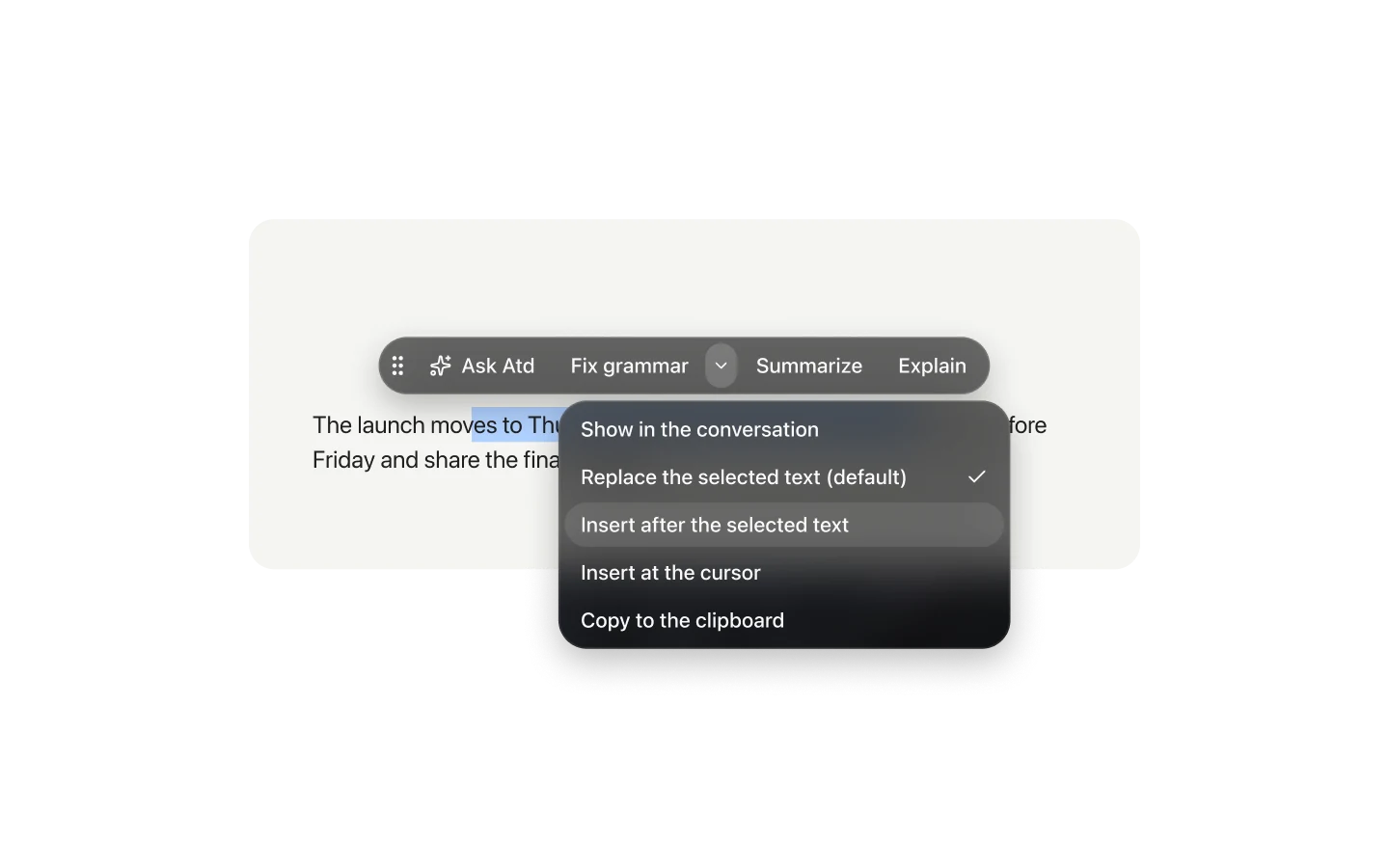
Ask or run a command on the text you select
The selection toolbar works on text you select in other Mac apps. Ask Atd a question about the selection, or run a saved command on it. Commands that read the selected text appear on the toolbar automatically, and you can change a command’s options right beside its button.
Tap a command to run it with the options you picked last, or hold it to choose them first. The same commands also run from their own global shortcuts; with nothing selected, a selection command asks for the text in a small card and puts its answer at the cursor.
Choose where the answer goes
Every command has a result setting that decides what happens when the answer is ready, and the answer always stays in the conversation as well:
- Replace the selected text: for rewrites, translations and grammar fixes.
- Insert after the selected text: keeps the original and adds the answer after it, for replies and continuations.
- Insert at the cursor: types the answer where the cursor was.
- Copy to the clipboard.
- Show in a card: a floating card over the app, ready to copy, insert or open in Atd.
- Show in the conversation: the answer stays in the panel.
Review an answer before it lands
Turn on Review before applying for a command or one of its shortcuts, and its answer waits on a review card beside your original instead of writing straight into the app. Regenerate it, type a note, pick adjustment suggestions or change option values, step between versions, then insert or replace.
If the app can’t take text where you are, the answer shows in a card for you to copy. Writing back and cards only happen when a command runs from another app through the toolbar or its shortcut; a run started in the panel keeps its answer in the conversation.
Saved commands with options and shortcuts
Create commands in Settings → Commands, or describe one in a conversation and Atd saves it once you confirm. A command holds its instructions, where its text comes from (the selection, typed text, the clipboard or a screenshot) and where its answer goes.
Parameters turn a choice you switch between runs into an option, such as the target language or tone. Choices and switches can be picked right on the toolbar, and a command starts from the values you used last. Each command can have up to eight global shortcuts, each fixing its own values or answer destination: one key to translate into English and another into German, for example.
- Parameter types: text, number, choice and switch.
- Up to eight adjustment suggestions, shown as chips on the review card.
- Shortcuts can be a key combination or a double-tap of ⌘, ⌥, ⌃ or ⇧.
- Offer a command on the toolbar in other apps, the toolbar in conversations, text in a screenshot, or a turn’s actions.
Control when the toolbar appears
The toolbar needs Accessibility access (Device Control and Data Access on newer macOS), which macOS asks for when you start using it. In Settings → General → Selection toolbar you choose how it comes up: on any selection, only while you hold keys, or switched on and off by pressing keys twice.
It can start as a small icon by the pointer that expands on click or hover, appear next to the pointer, above or below the selection, and stay out of apps you exclude. An optional integration also brings it up for spreadsheet selections in WPS.
Questions
Does the selection toolbar work in every Mac app?
It works on text you select in other apps that share their selection with macOS. Some editors don’t expose enough to recognize every selection or to take text back; then the answer shows in a card for you to copy. You can also keep the toolbar out of specific apps under Excluded apps in Settings → General → Selection toolbar.
Can I check an answer before it replaces my text?
Yes. Turn on Review before applying for the command or for one of its shortcuts. The answer then waits on a review card beside your original, where you can regenerate it, add a note, pick adjustment suggestions, compare versions, and finally insert it after the selection or replace it.
What happens if nothing is selected when I press a command’s shortcut?
A command that works on selected text asks for the text in a small card and runs on what you type. If its answer is set to replace the selection or go after it, the answer goes in at the cursor instead.
Can one command have different shortcuts for different options?
Yes. A command can have up to eight global shortcuts. Each one can fix parameter values, where the answer goes or the reasoning level, and anything it leaves unset follows the command. Commands with different instructions or inputs are separate commands.