Screen capture
AI screenshot and screen recording tool for Mac
Press ⌘ ⇧ 2 to capture part of your screen, mark what matters and ask Atd about it. Stitch a scrolling page into one long screenshot, record your screen with the steps Atd can read, or run a command on the text inside a capture.
Annotated screenshots you can ask about
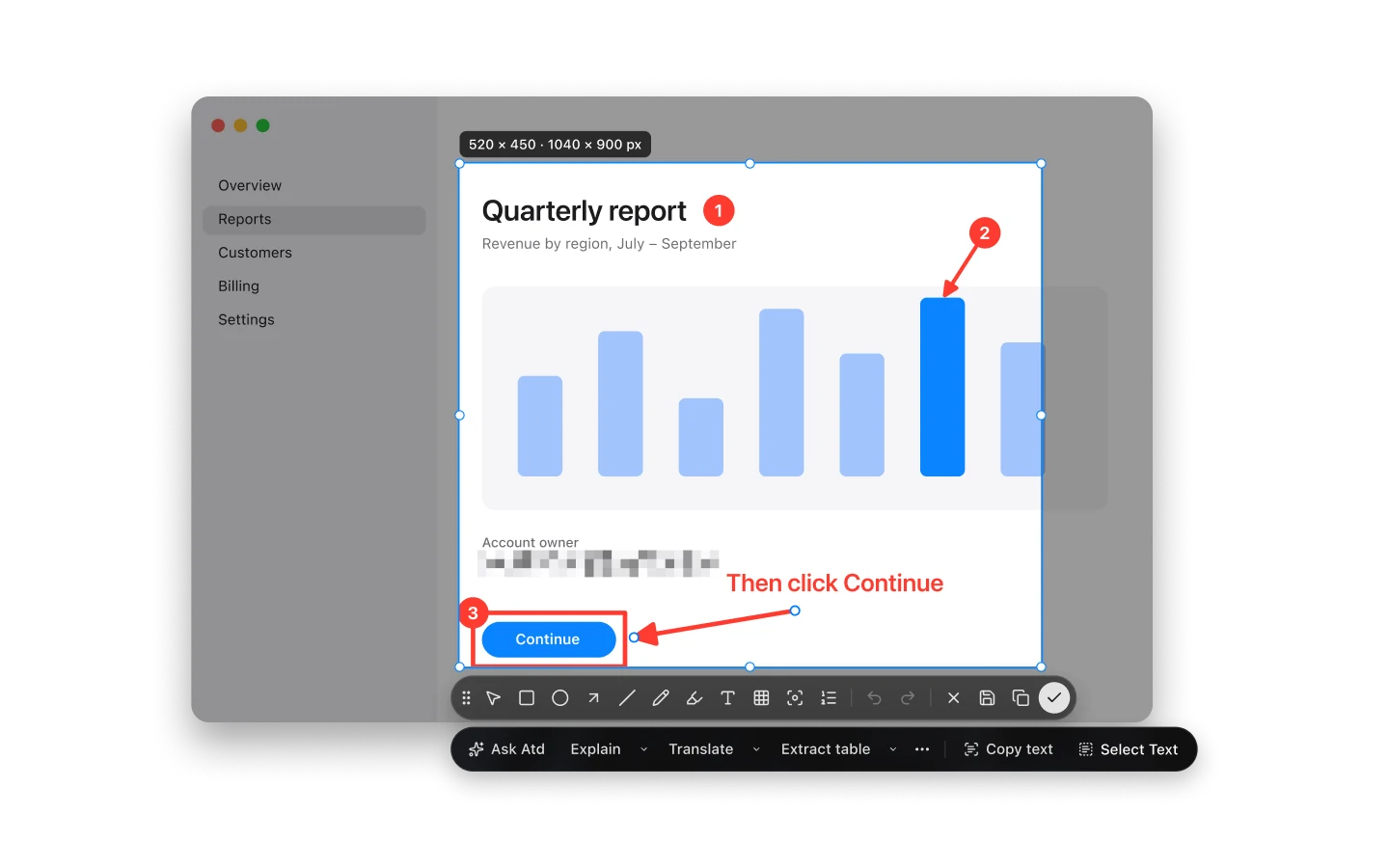
Press ⌘ ⇧ 2, or start a capture from the Mini Panel or the composer’s + menu, and select an area. On-screen hints show how to select, adjust and confirm, and confirming attaches the screenshot to your message.
A command row under every screenshot offers Ask Atd, Copy Text, Cover Sensitive Info and your screenshot commands. Starter commands explain, translate or summarize a screenshot, or transcribe it as Markdown.
- Annotation tools: rectangle, ellipse, arrow, line, pen (with Smart Shapes), highlighter, text with plates and font picker, numbered or lettered steps, spotlight, mosaic (region or brush), custom color wheel and eyedropper.
- Pin any screenshot as a borderless floating window across Spaces with zoom, opacity, border and shadow controls.
- Save with ⌘ S to a folder you choose, or have Atd ask each time.
- Choose in Settings → General → Screenshot whether confirming attaches and copies, attaches only or copies to the clipboard only.
- Questions and commands started from captures get their own Captures tab in task history.
Long screenshots of scrolling pages
Select a scrollable area and click Long screenshot on the toolbar, or press ⌘ ↓. Scroll through the content yourself, or press Space for Auto-scroll, while Atd stitches the page live beside a preview strip. Press Return to open the Long Screenshot card.
On the card you can trim the top and bottom, check What Atd Will Read page by page, cover sensitive info, annotate in a full-screen preview, ask about the capture, or save, copy and attach it. Settings → General → Screenshot decides whether confirming a long screenshot opens the card, copies it or saves it.
Screen recordings with steps Atd can read
Switch to Record on the capture bar, choose Screenshot or recording from the composer’s + menu, or press ⌘ ⇧ 3 when that shortcut is available, then record an element, a window or any part of your display. Beside the selection you set the microphone and system audio, a countdown, quality, frame rate, and whether to show the pointer, clicks and keystrokes. Pause, toggle the microphone or stop from the floating capsule, the menu bar timer or ⌃ ⌘ Esc.
When you stop, the Screen Recording card opens over your screen. Trim the timeline, review Steps Atd Will Read (detected clicks, keystrokes, screen changes and narration transcribed on your Mac), then ask a question, save, copy or choose Attach to Conversation. The video file itself is not sent to the model.
Run commands on the text in a screenshot
Click Select Text on a screenshot, or in a long screenshot’s full-screen preview, to pick paragraphs or characters while the capture stays open. Commands that read selected text run right on the image, and the result card lets you compare or regenerate versions, restore the original, and copy the screenshot without closing it.
Ask Atd works in Select Text mode too, even on screenshots without recognized text. It can draw boxes, ellipses, arrows, spotlights, numbered steps and mosaic onto the image, or answer as text on the result card.
- Replace the selected text: a command such as a translation rewrites the picked paragraphs in place; hold ⌥ to compare with the original.
- Insert after the selected text: numbers the paragraphs on the image and lists the notes on a card beside the capture.
- Mark the selected text: highlights key passages and numbers steps directly on the screenshot.
Permissions and what Atd reads
macOS asks for Screen Recording access when you first capture or record. Atd recognizes the text in a capture on your Mac. A capture reaches a model only when you ask about it, run a command on it or send it in a message, and then it goes to the model provider you configured.
Text covered with the mosaic tool or Cover Sensitive Info can’t be picked and is left out of the recognized text sent with a capture.
Questions
How do I take a scrolling screenshot on a Mac with Atd?
Press ⌘ ⇧ 2, select the scrollable part of the window, then click Long screenshot or press ⌘ ↓. Scroll through the content yourself or press Space to auto-scroll while Atd stitches it. Press Return to open the Long Screenshot card, where you can trim, annotate, ask about, save or copy it.
Does Atd send my screen recording video to the AI model?
No. Atd reads a recording as steps: detected clicks, keystrokes, screen changes and narration transcribed on your Mac. You can review them under Steps Atd Will Read and trim the recording before you ask; the video file itself is not sent to the model.
Can I hide sensitive information before asking about a screenshot?
Yes. Cover details with the mosaic tool, or use Cover Sensitive Info on the command row. Covered text can’t be picked for a command and is left out of the recognized text sent with the capture.
Can Atd translate or rewrite text inside a screenshot?
Yes. Click Select Text, pick the paragraphs, and run a command that reads selected text, such as a translation. Its answer replaces the text on the image while the capture stays open; hold ⌥ to compare with the original, step between versions on the result card, or restore the original.