Automations
Scheduled AI tasks and automations for Mac
Atd runs prompts and saved commands on its own: on a schedule, when files arrive or change in a folder, when your Mac is idle, or after another automation finishes. Each run is a task you can open, with status and run history in Settings › Automations.

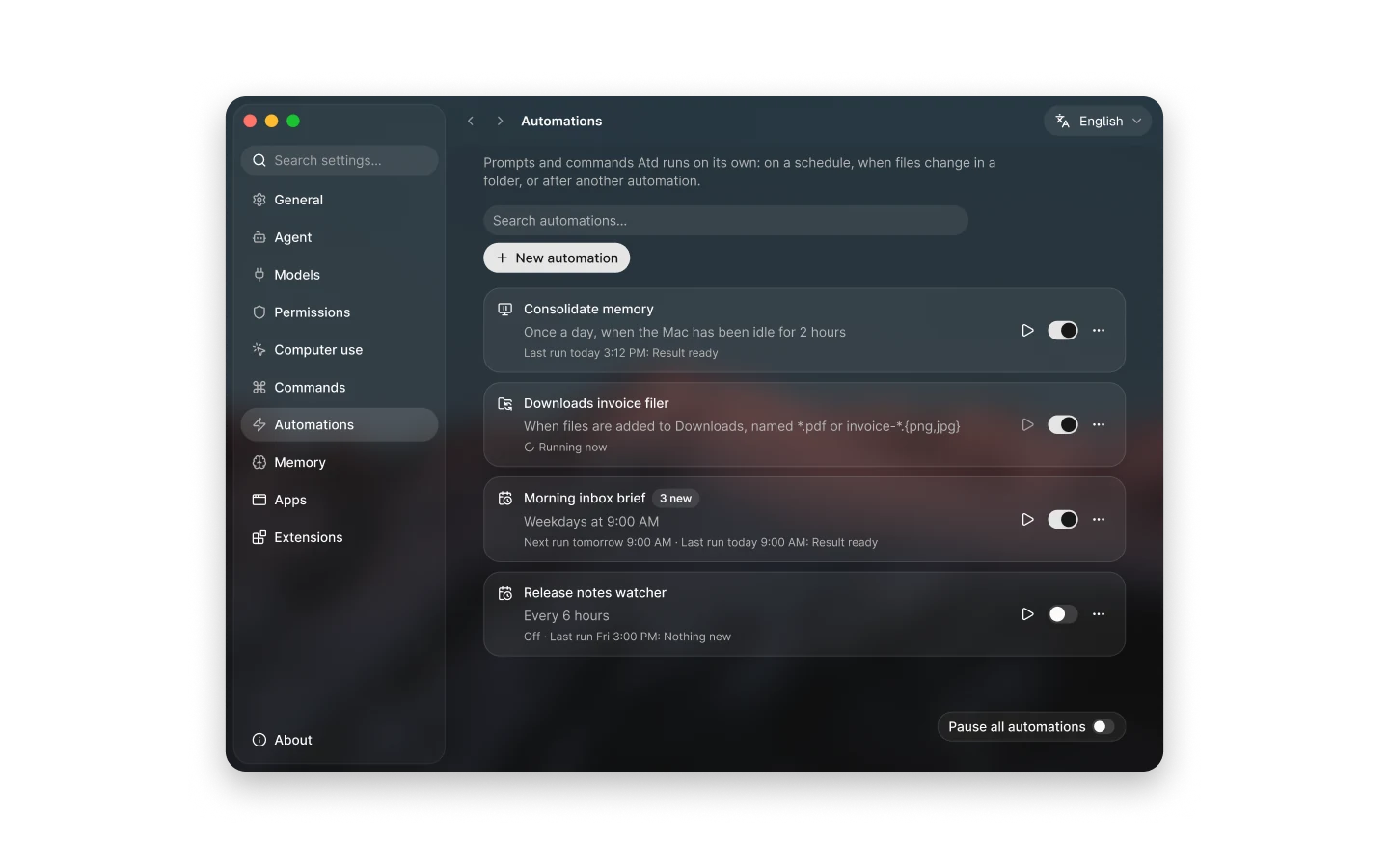
Choose what starts a run
An automation starts from one of four triggers. Runs start on their own while Atd is open, and each one begins a new task in the task panel with nobody there to answer questions, so everything a run needs is settled when you create it.
- Schedule: once, at an interval from 15 minutes to a week, daily, weekly, monthly, or a custom cron expression, in the time zone you choose.
- Folder: when files are added to or change in a folder you choose, optionally only files matching name patterns such as *.pdf, including subfolders up to 4 levels down.
- Mac is idle: at most once a day, the first time your Mac has had no keyboard, mouse or trackpad input for 5 to 120 minutes while none of your tasks is running.
- Another automation: after another automation’s run has a result, finds nothing new, needs you or fails. Automations can’t follow each other in a loop.
Decide what each run does
A run follows a prompt you write for it, or runs one of your saved commands with its parameters and input. Each run starts fresh, so a prompt should say what to do, where to look and what a good result looks like. A folder run also hands its command the files that changed.
To automate a saved command, choose Automate… from its More menu in Settings › Commands, or ask Atd in a conversation to set up the automation for you. Commands that read the selection, the clipboard or a screenshot need you there, so they can’t run as automations.
New installations include an editable Consolidate memory automation that merges duplicate memories and rewrites outdated ones, at most once a day after two hours of Mac inactivity. Memories it would remove become suggestions you confirm in Settings › Memory.
Set what unattended runs may do
Each automation has its own approval setting. Under Auto approval, a model checks each action against the automation: safe actions run, and anything it would ask you about is declined. Manual approval declines every file change and terminal command, so runs can only read and report. Always allow runs everything without asking and asks you to confirm before you switch to it.
- Choose the tools a prompt run may use and the folders every run may read; a watched folder is always readable.
- Runs can use what Atd remembers about you, but never add to memory.
- A run still going after its time limit, from 5 minutes to 4 hours, is stopped and counts as failed.
- Runs missed while Atd was closed or your Mac was asleep can run once when Atd is back, marked late, or be skipped.
- Computer actions need separate authorization: run a trial of the exact steps, then choose Save and authorize. Only website targets run unattended.
Follow results and run history
Choose when Atd notifies you: when there’s something new, after every run, or only when something goes wrong. Runs that fail or need you always notify. Pass on the previous result lets each run see the last one and report only what changed.
Settings › Automations shows each automation’s next and last run. Run history keeps the last 100 runs with their outcomes and a link to each run’s task, and Run now starts one right away. Pause all automations stops anything from starting on its own, and an automation that fails several runs in a row is turned off until you check it.
Ideas to start from
Automations suit work you would otherwise have to remember to start yourself. A few examples:
- Every weekday morning, prepare a brief of what needs your attention.
- File invoices as they arrive in a watched folder.
- Check a source on a schedule and report only what changed since the last run.
- Summarize what arrived in your Downloads folder today and list anything that needs a reply.
Questions
Do automations run when Atd is closed?
No. Automations run only while Atd is running. For a schedule, choose whether the latest run missed while Atd was closed or your Mac was asleep runs once when Atd is back, marked late, or is skipped. For a folder trigger, skipping starts watching from now instead of handling changes made while Atd was closed.
What happens when a run needs my approval?
Nobody is there to answer, so the run declines whatever its approval setting would ask about instead of waiting. The run is marked as needing you, which always sends a notification, and you can open its task from the run history to see which actions were declined.
How often can an automation run?
Scheduled runs are at least 15 minutes apart, and the Mac is idle trigger runs at most once a day. If the previous run is still going, a new scheduled run is skipped, and an automation skips any run beyond 12 in the past hour.
Can an automation use my ChatGPT plan?
Yes, once you allow it. Turn on Allow background use for that connection under Settings › Models; it’s off by default and separate from signing in. Withdrawing it stops later background requests from using your plan.
Can an automation work in websites or apps?
Only within a scope you authorize. Do the work once with Atd in a task, ask Atd to turn that task into an automation, then run a trial of exactly those steps and choose Save and authorize in Settings › Automations. Unattended runs act only on websites, only through the authorized steps, and stop for your review when Atd can’t confirm an action took effect.