Atd 0.11.0
Capture more of your screen and act on it in place
Record your screen with detected steps and narration, stitch scrolling pages into long screenshots, run commands on text inside a screenshot, and read formatted Markdown on floating result cards.
Record your screen and ask about it
Switch to Record on the capture bar, choose Screenshot or recording from the composer's + menu, or press ⇧⌘3 (when available) to record an element, a window, or any part of your display. Set Sound and Options right beside the selection — microphone and system audio, countdown, quality, frame rate, pointer, clicks and keystrokes, and what happens afterward — then press ↩ to start, and pause, toggle the microphone, or stop anytime from the floating capsule, the menu bar timer, or ⌃⌘Esc.
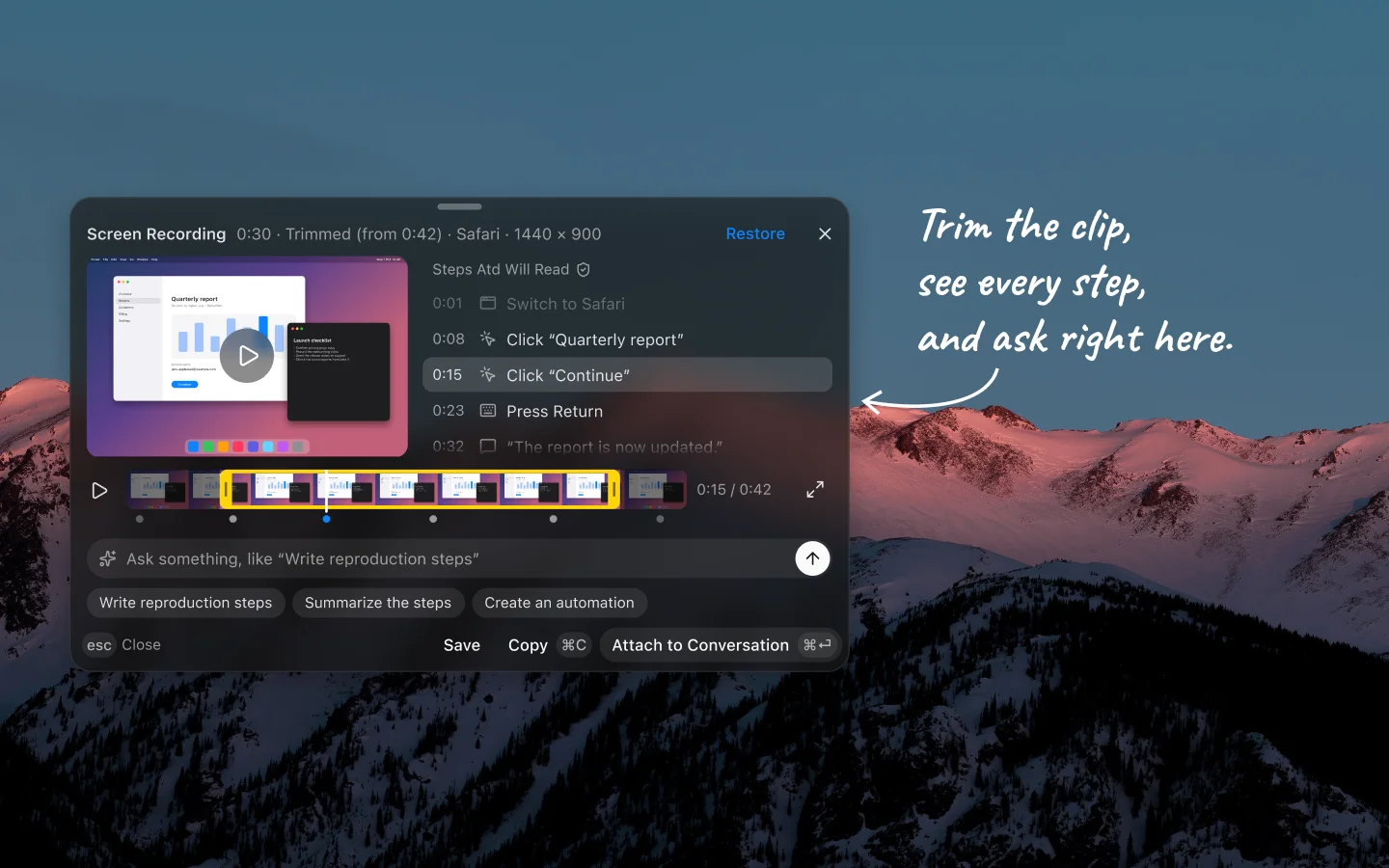
When you finish, the Screen Recording card opens over your screen:
- Timeline — trim the start and end to keep only the moments that matter, or restore the full clip anytime.
- Steps Atd Will Read — inspect detected clicks, keystrokes, screen changes, and on-device narration; the video file itself is not sent to the model.
- Ask or share — ask a question right on the card, or save, copy, or choose Attach to Conversation.
Long screenshots for scrolling pages
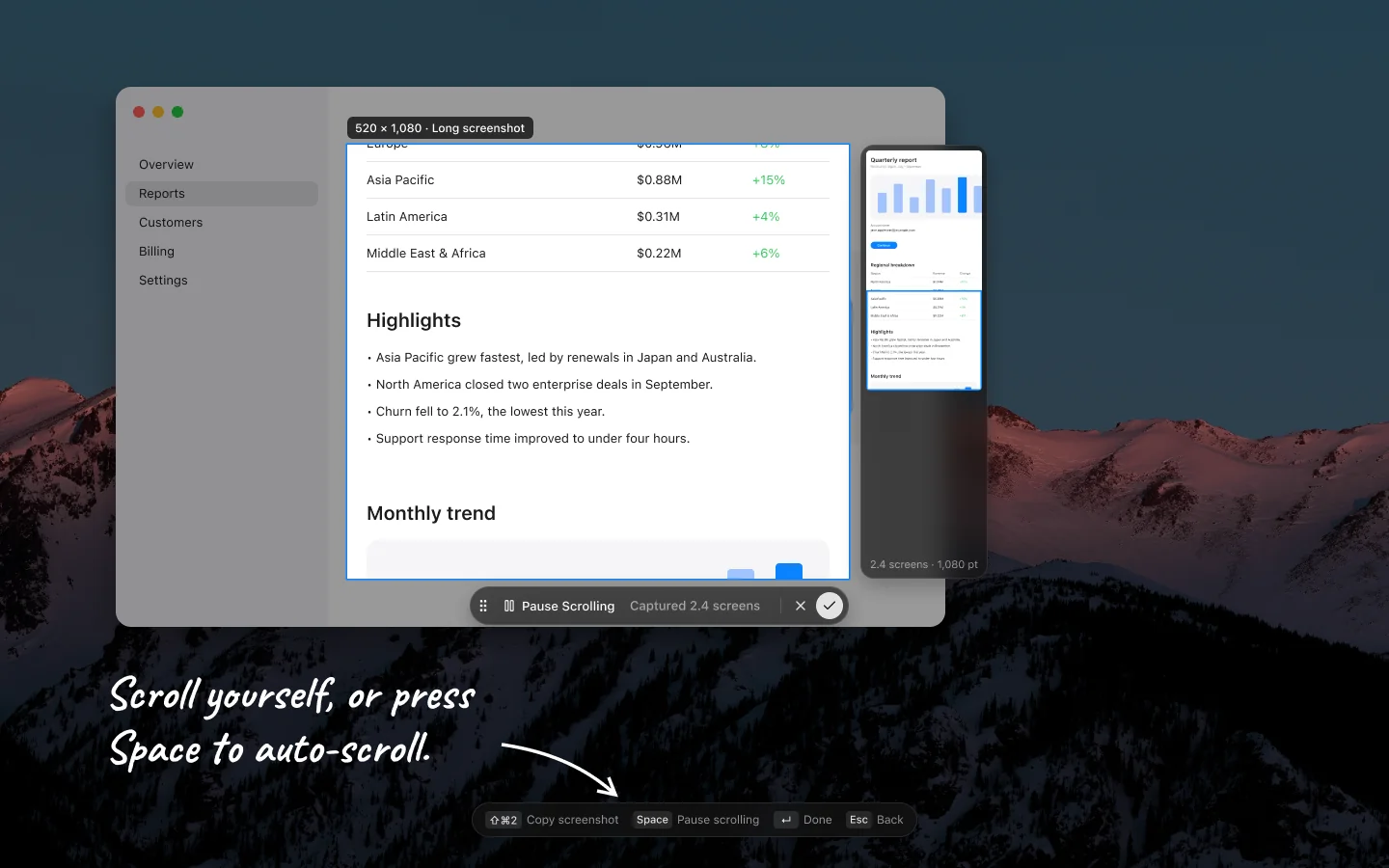
Select a scrollable area on a display and click Long screenshot on the toolbar, or press ⌘↓. Scroll through the page yourself or press Space for Auto-scroll while Atd stitches the selection live alongside a preview strip. Press ↩ to open the Long Screenshot card, where you can trim the top and bottom, inspect What Atd Will Read page by page, cover sensitive info, annotate in full-screen preview, ask about the capture, or save, copy, or attach it.
Every screenshot now also includes a command row for Ask Atd, Copy Text, Cover Sensitive Info, and screenshot commands — including starter commands to explain, translate, or summarize a screenshot, or transcribe it as Markdown. Questions and commands started from screenshots or recordings live in their own Captures tab in task history, with Show captures in All available under View options.
Run commands on text in a screenshot
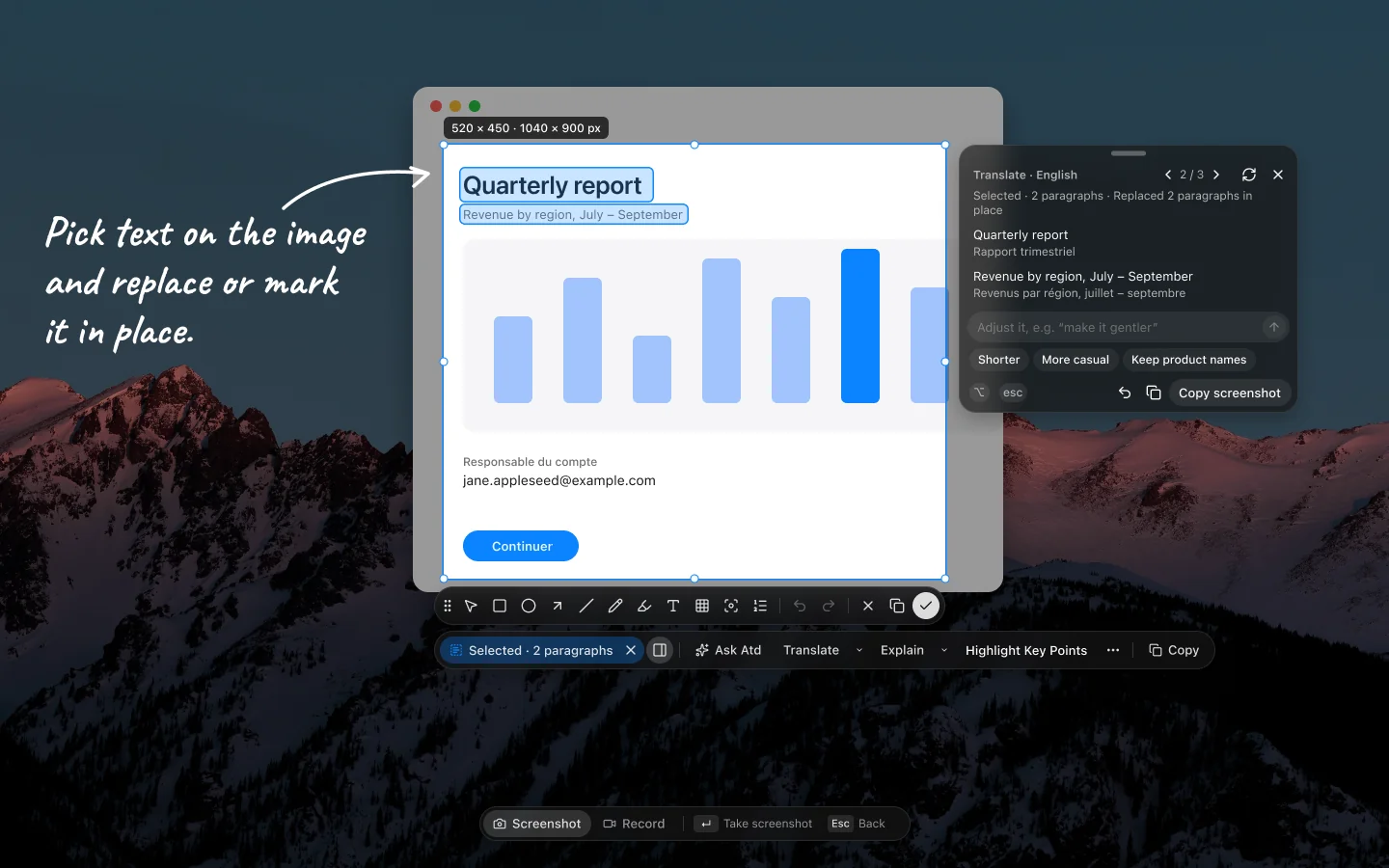
Click Select Text on a screenshot — or in a long screenshot's full-screen preview — to click paragraphs, drag across several, or select characters while the capture stays open. Commands that read selected text run right on the image:
- Replace the selected text — commands such as Translate or Polish rewrite picked paragraphs in place; hold
⌥to compare with the original. - Insert after the selected text — numbers the paragraphs on the image and lists the notes on a floating card beside the capture.
- Mark the selected text — highlights key passages and numbers steps directly on the screenshot.
In Select Text mode you can also use Ask Atd for free-form questions with a When done destination picker — even on screenshots without recognized text. Alongside text highlights, Atd can progressively stream visual shapes (boxes, ellipses, arrows, spotlights, numbered steps, and mosaic redactions) directly onto the image, or reply as plain text on the card.
From the result card you can compare or regenerate versions, restore or reapply changes on the image, and Copy screenshot without closing the capture; the Results toggle (⌥⌘I) on the command row shows or hides the card at any time. Text covered with the mosaic tool or Cover Sensitive Info cannot be picked and is excluded from the recognized text sent with a capture.
Markdown in floating result cards
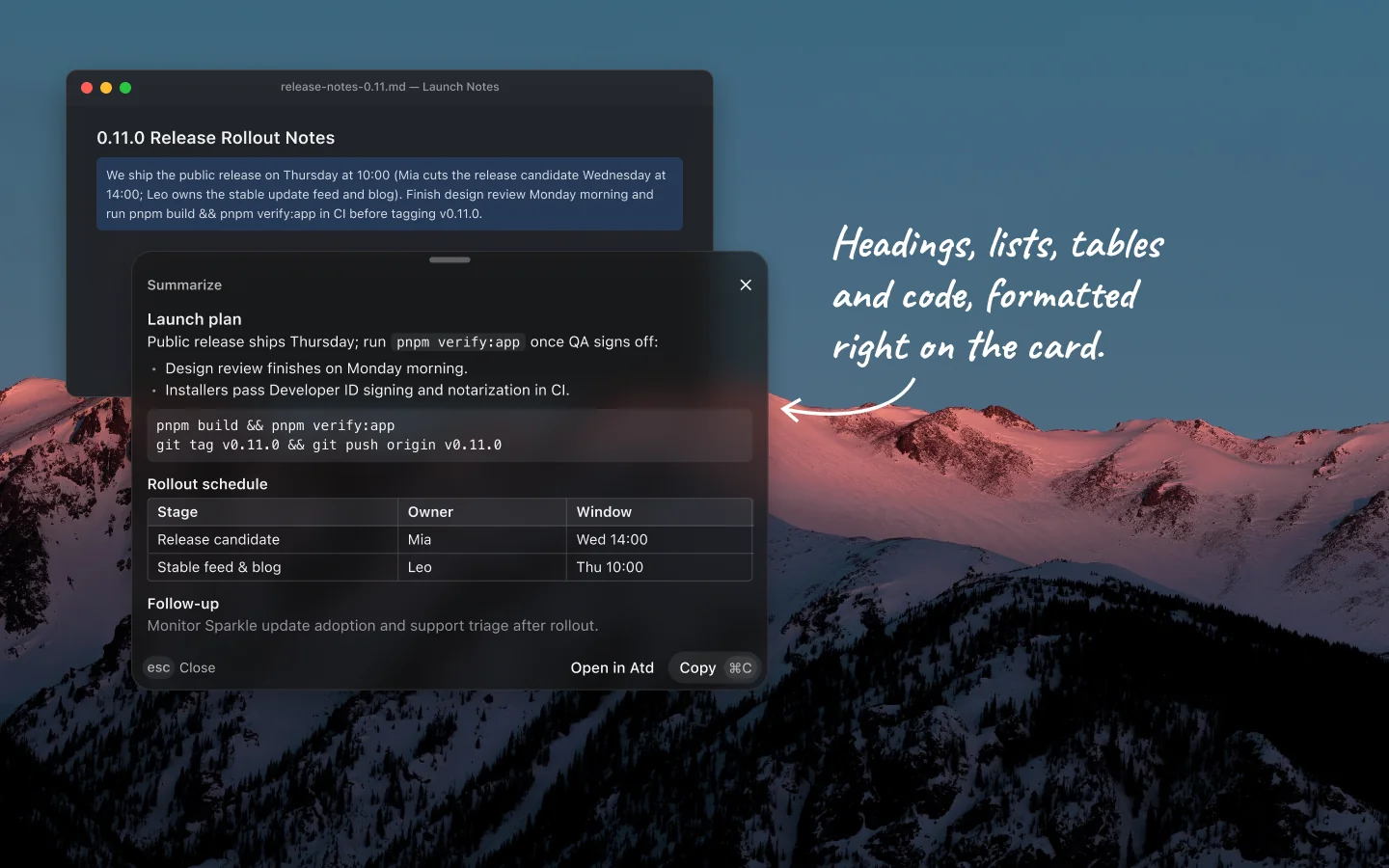
Answers on floating result cards — the command island's answer and review cards, along with screenshot, long screenshot, and recording results — now format headings, bulleted and numbered lists, task checkboxes, quotes, code blocks, and tables as they stream in. Turn off Markdown in results under Settings › General if you prefer plain text.
Any command can now also set its result to Show in a card, keeping explanations, summaries, and translations in a floating card over the app you ran them from, ready to copy, insert, or open in Atd without bringing up the main panel.
Improvements
After updating to a new stable version, a Release notes button in the panel header — and View release notes in Settings › About — opens that release's notes in your language.
Panel, capture, and command shortcuts now respond right away before keys are released or background selection reads finish, and screen recordings prepare during the countdown so capture starts without a pause.
Panel commands now open their conversation right away before the service responds, keep any draft you start typing as the task settles, and return to the command input view if starting fails.
Added an optional WPS spreadsheet selection integration under Settings › General › Selection toolbar to show the toolbar when selecting spreadsheet content in WPS.
Floating cards, capsules, and secondary windows keep responsive hover states, pointer cursors, edge scroll fades, and smooth entrance and resize animations even while another app is active.
OpenDocument text (
.odt) files in conversations now open directly like other documents without an extra confirmation prompt.Read aloud starts faster by caching installed macOS speech voices.
Filter Memory by user profile, preferences and facts, corrections and learnings, or tool preferences, with clearer empty and search-result states.
Provider connections now accept plain HTTP endpoints, including internal hostnames, with an inline warning for non-loopback connections.
Added Save location settings (including Ask each time) and direct Save (
⌘Son screenshots, result cards, and full-screen previews), plus Settings › General › Screenshot options to copy confirmed screenshots automatically or choose whether confirming a long screenshot opens its card, copies, or saves, with Dynamic Island feedback.Added Tips & Notices… in the menu bar and an in-app prompt to re-grant Accessibility and Screen Recording if a Developer ID signing certificate update invalidates earlier macOS permissions.
Floating island, recording playback, and lightweight capture runs now size and track hover more efficiently, isolate 60 fps video playback updates, and run eligible screenshot-text commands on faster lightweight sessions.
Settings, long conversations, streaming, and search open and stay smoother with native loading feedback and preloaded settings sections, bounded live tool output, background worker highlighting for large diffs and code blocks, lazy JSON trees, debounced draft persistence, and reduced background work while the panel is hidden.
Fixes
Fixed focus handoffs and answer write-backs triggered by shortcuts so they wait cleanly for shortcut keys to be released — including over remote input — and keep the answer on its card if focus changes before writing finishes.
Fixed the selection toolbar reading selections from background apps or triggering on empty Chromium selection markers and navigation tables in Apple Notes.
Fixed unpinned task panels losing window order while focused, staying above other apps after switching away, or covering system file dialogs.
Fixed switching annotation tools in a screenshot leaving the previous annotation selected when changing color or stroke width.
Fixed Ask Atd and text commands started from screenshots or long screenshots not appearing under the Captures task history filter and search.
Fixed the selection toolbar and text capture treating attachment placeholders (
U+FFFC) or whitespace-only selections as text.Fixed menu-triggered dialogs colliding with closing menus or stalling while the panel is hidden, cleared stale task details on task switches, and prevented stale WebView completions or malformed stream frames from wedging reloaded pages.
Fixed macOS 15 glass surfaces leaking blur outside rounded or island bounds and staying attached under Reduce Transparency.
Other
Release installers and updates are now signed with Apple Developer ID (Apple notarization is pending for a follow-up release, so first launch may still require choosing Open Anyway in System Settings); macOS may ask to reconfirm privacy permissions once when upgrading from an earlier version.