Atd 0.10.7
Read earlier replies without losing your place
Capture screenshots with clearer on-screen hints, read earlier replies while work continues, and stop preparing next-step suggestions you don't need.
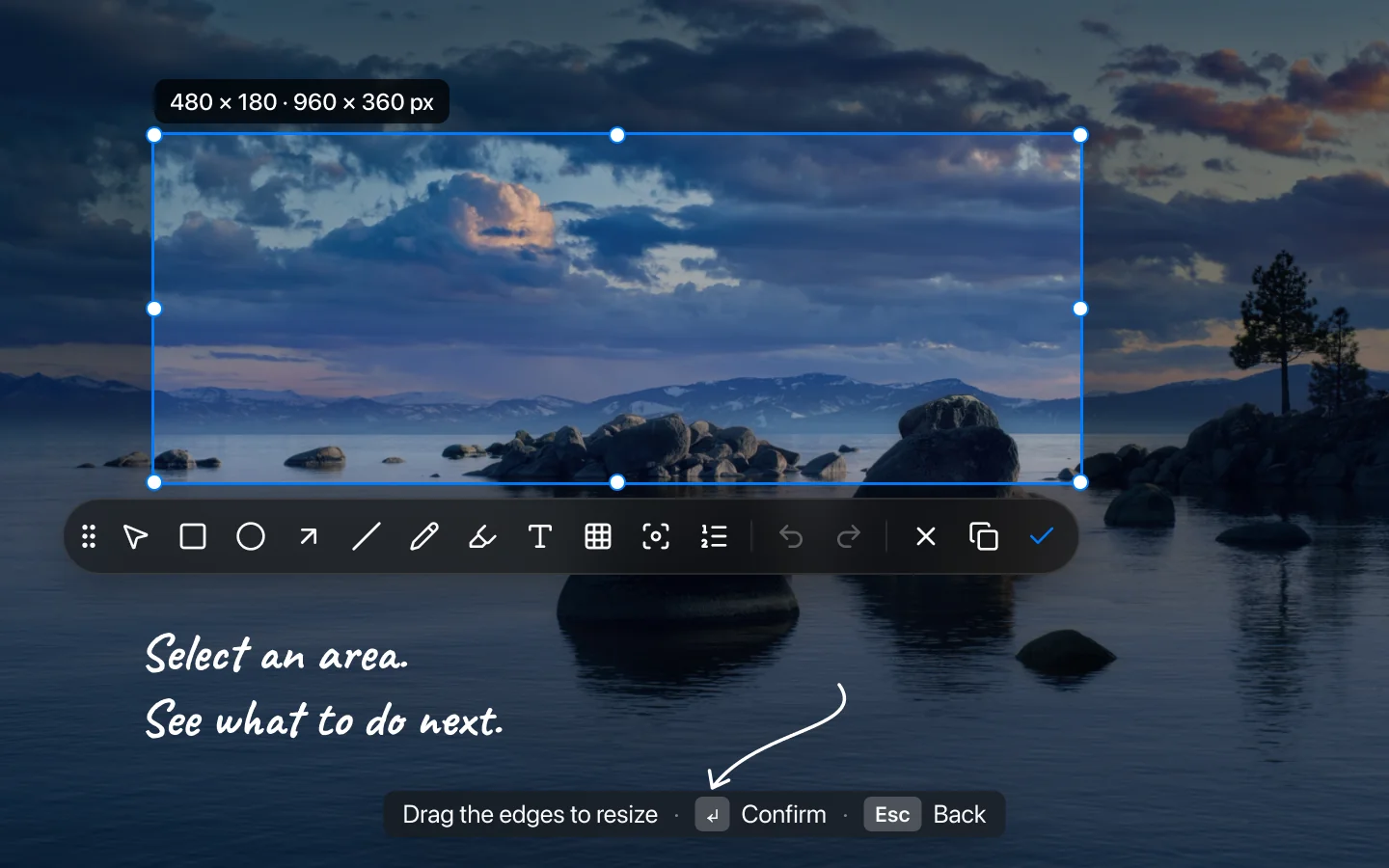
Screenshot hints for each step
When you open the screenshot tool, the hints show how to click or drag to select, scroll between areas, and use the shortcuts available there. Once you select an area, they change to show how to adjust its edges, confirm, or go back.
The shortcuts now appear as keycaps, making them easier to spot while you work. The hint bar also blurs what's behind it, so the text stays clear over a window or the Dock.
Read while work continues
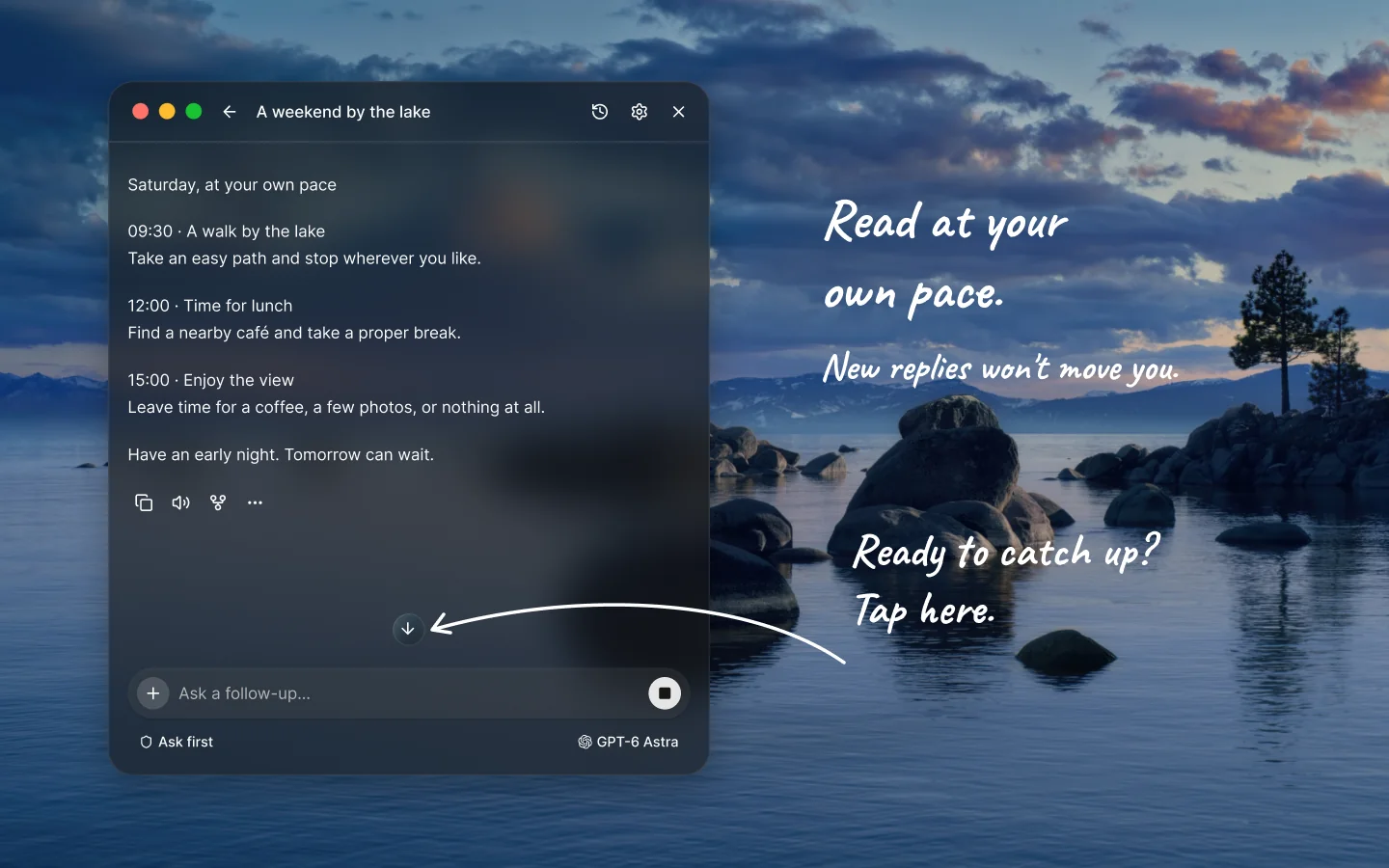
While Atd is working, scroll up, use the scroll keys, or drag the scrollbar to read an earlier reply. The conversation stays where you put it instead of pulling you back to the bottom.
When you're away from the bottom, a down arrow stays in place near the bottom of the panel, ready to take you back to the latest message. With glow effects on, it glows while work is queued or running, including in subagent conversations. Sending a new message also brings you back to the end.
Stop preparing suggestions
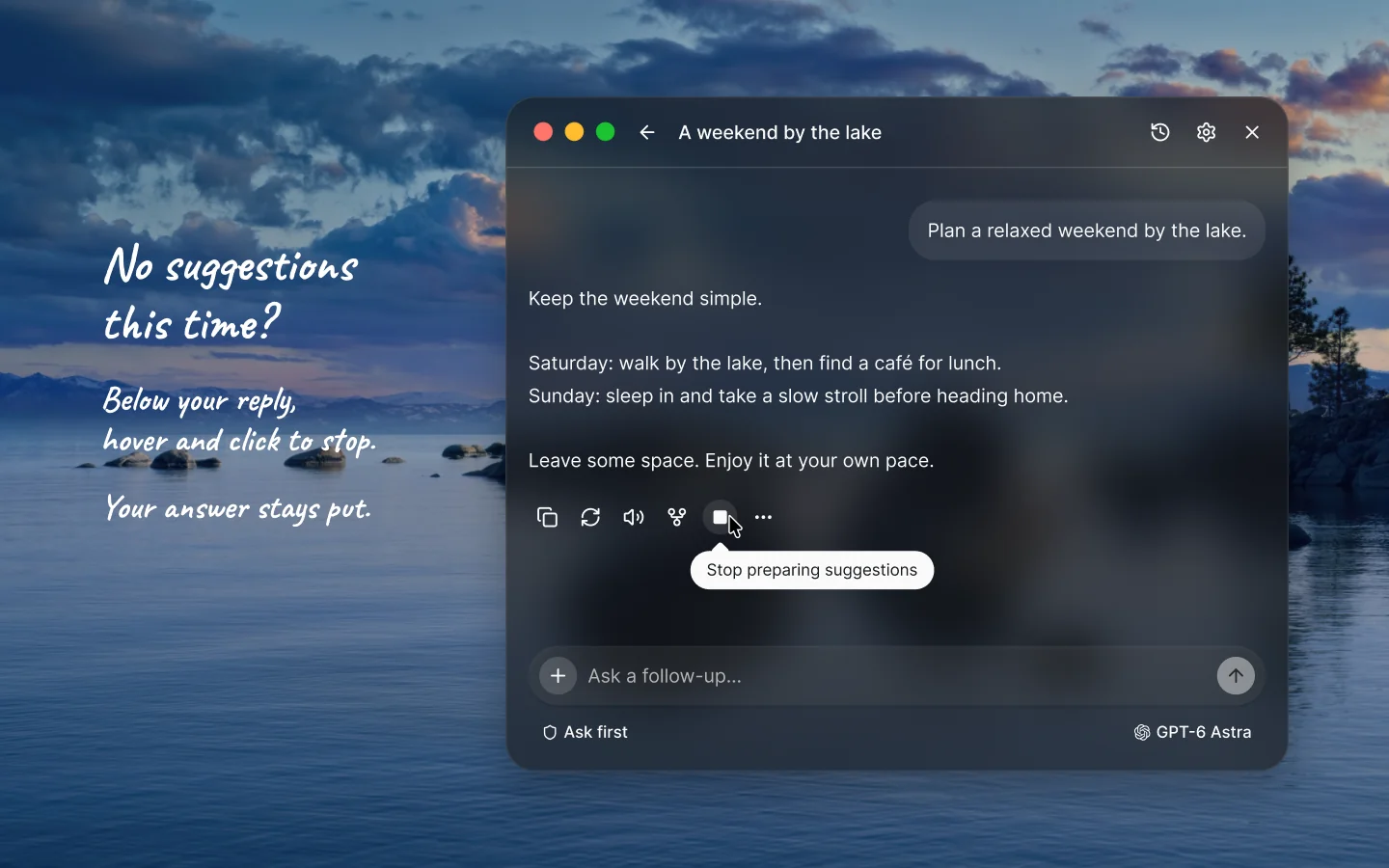
After the latest reply finishes, Atd may prepare suggested next steps. If you don't need them this time, hover over the spinner in the reply's action bar, or move keyboard focus to it, and it changes to a Stop icon. Click it to stop preparing the suggestions; your completed answer stays in place.
Fixes
Fixed an issue where, after opening Atd and typing in another app, returning to the panel could leave it unable to accept input or move behind other windows.
Attachments on sent messages stay visible when you enter or leave editing, without flickering or reloading.
With Show in Dock off and Atd in front, closing Settings or the getting-started guide keeps keyboard focus in another visible Atd window on the current desktop.
When approval choices no longer fit on one line, they stack in full-width rows in the same order, instead of leaving a single choice on a wrapped line.
Secondary buttons, tags, keycaps, tabs and inline code blend more naturally with translucent panels, as do permission choices.
Activity connector lines use softer colors.
Improved performance in long conversations as replies stream and tool or computer activity updates.
Closed windows, finished screenshots and disconnected conversations now release resources more reliably during extended use.
The Return key in macOS shortcuts now appears as ↩, consistent with the other keyboard symbols.